How to Check Whether an Officially Distributed File Has Been Modified by Comparing Hash Values
Downloading software, firmware, operating system images, security utilities, and device updates often requires more trust than users realize. A file may appear to come from the correct website, carry the expected name, and open without an immediate warning, yet none of those details proves that its contents are identical to the publisher’s original release.
A cryptographic hash offers a practical way to examine file integrity. It converts the contents of a file into a fixed-length sequence of characters. Even a small modification, such as changing a single byte, normally produces a completely different result. By calculating the hash locally and matching it against a value published by the developer, users can determine whether the downloaded copy has changed during transfer, storage, or distribution.
This method is useful, but it must be applied correctly. A matching value is meaningful only when the reference comes from a trustworthy source, the correct algorithm is used, and the entire sequence is examined. It also does not replace digital signatures, software reputation research, or ordinary security precautions.
The Reference Value Must Come From an Official Source
The most important part of an integrity test is not the calculation itself. It is the origin of the expected value.
A SHA-256 or SHA-512 string should be obtained from the developer’s official distribution page, release notes, security advisory, source-code repository, or dedicated checksum document. Some publishers place the reference beside each download button, while others provide a separate text file containing values for every package in the release.
Values copied into blogs, community discussions, social media posts, unofficial tutorials, file-hosting descriptions, or download aggregators should not normally be used as the standard. Those pages may contain typing errors, outdated information, or content copied from an unknown source. More importantly, an attacker who replaces a download may also publish a new value that corresponds to the modified file.
A hash does not establish the reliability of the place displaying it. It only shows whether two pieces of data produce the same result under a selected algorithm. Therefore, a perfect match against an untrusted reference provides little reassurance.
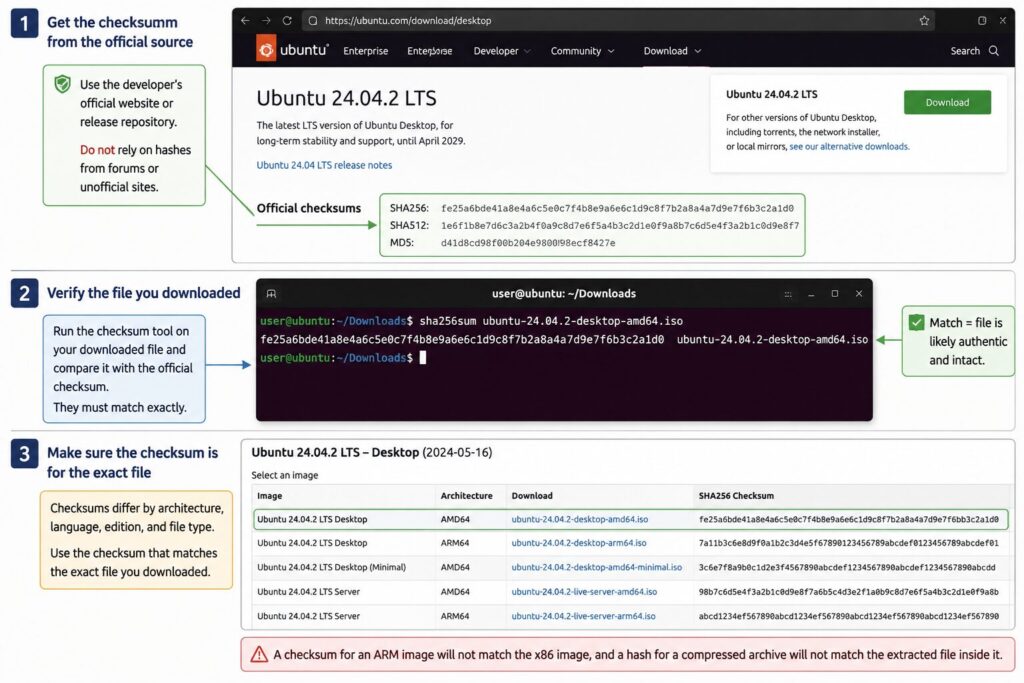
Whenever practical, obtain the file and its reference through separate authorized routes. For example, an operating system image may be downloaded from an approved mirror while its SHA-256 value is collected from the developer’s main HTTPS website. This arrangement reduces the possibility that a compromised mirror could substitute both items at the same time.
The reference must also belong to the exact package on the device. A release may contain separate builds for Windows, Linux, macOS, ARM64, x64, different languages, multiple device models, or several installation formats. A value for a ZIP archive will not correspond to the extracted executable inside it. Likewise, a firmware image for one router revision may differ entirely from a similarly named package intended for another revision.
Before performing the calculation, confirm the complete filename, version number, platform, hardware architecture, file extension, and selected algorithm. These details prevent a legitimate but different package from being mistaken for a corrupted one.
Modern SHA Algorithms Provide Stronger Assurance
Not all hashing methods offer the same level of protection.
MD5 and SHA-1 were widely used for file distribution in the past and may still appear beside older software releases. They can remain useful for detecting accidental transmission errors, but they are no longer preferred for security-sensitive integrity assurance because weaknesses have been demonstrated in their resistance to deliberate collision attacks.
For modern downloads, SHA-256, SHA-384, or SHA-512 should be preferred when the publisher supplies them. These algorithms belong to the SHA-2 family and produce substantially longer outputs than MD5 or SHA-1. Their design makes them more appropriate for identifying changes in files where intentional manipulation may be a concern.
NIST’s Secure Hash Standard, published as FIPS 180-4, describes algorithms including SHA-256, SHA-384, and SHA-512. These functions are designed to produce message digests that can be used to detect whether data has been modified.
The algorithm selected on the device must be identical to the one used by the publisher. A SHA-256 output cannot be matched against a SHA-512 reference because they are different calculations with different output lengths. Users should never attempt to “convert” an MD5 or SHA-1 value into SHA-256. Instead, they must generate the exact type identified beside the download.
SHA-256 outputs are commonly written as 64 hexadecimal characters, while SHA-512 produces 128. Uppercase and lowercase hexadecimal letters have the same meaning, so A3F9 and a3f9 are equivalent representations. Spaces, labels, filenames, and line breaks surrounding the sequence are not part of the digest itself.
Using a modern algorithm does not prove that a program is harmless. A publisher could distribute vulnerable software, or an official server could be compromised. The result supports a narrower conclusion: the downloaded copy is consistent with the data represented by the trusted reference.
Calculate the Hash Directly on the Device
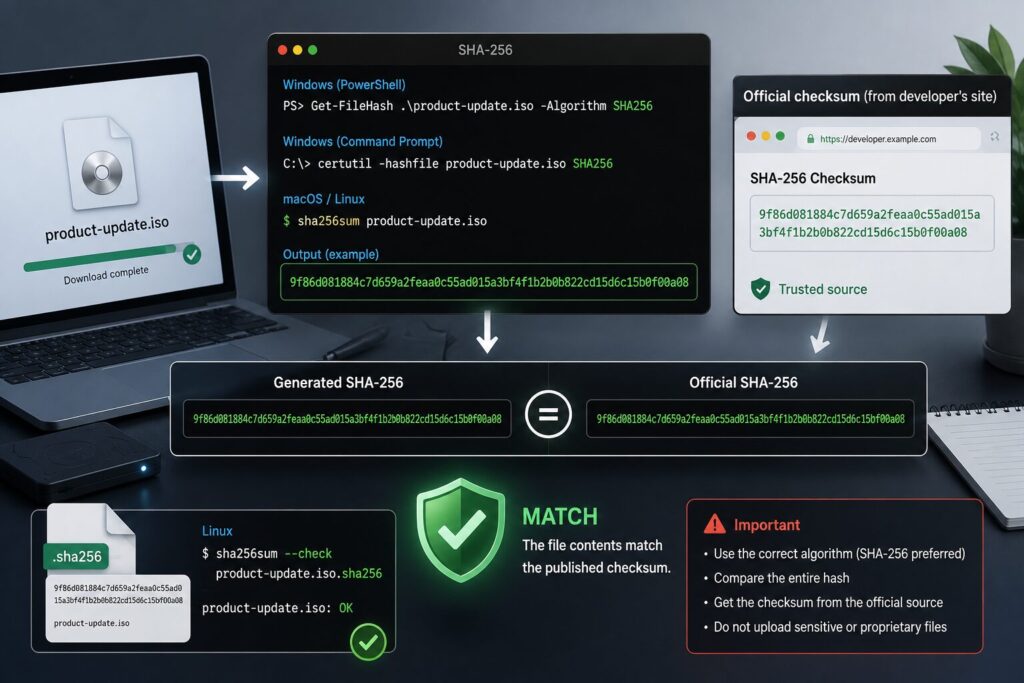
The safest approach is to calculate the digest locally. Online calculators may appear convenient, but uploading a confidential installer, internal document, proprietary archive, or unreleased product to an unknown website creates unnecessary privacy and security risks.
Windows, Linux, and macOS already include tools capable of handling this task.
On Windows PowerShell, the following command generates a SHA-256 digest:
Get-FileHash ".\product-update.iso" -Algorithm SHA256The official Microsoft documentation for Get-FileHash explains that the command calculates a file’s hash through a specified algorithm. SHA-256 is used when selected through the -Algorithm parameter.
Windows users can also use Command Prompt:
certutil -hashfile "product-update.iso" SHA256On Linux, the equivalent command is:
sha256sum "product-update.iso"The sha256sum utility computes or validates SHA-256 message digests and is commonly available on GNU/Linux systems.
On macOS, users can enter:
shasum -a 256 "product-update.iso"Quotation marks are especially useful when the filename or directory path contains spaces. A complete path may also be entered when the terminal is not currently located in the download folder.
After running the command, examine the full output against the complete official sequence. Matching only the first few and final characters is not enough. A digest must agree character for character from beginning to end.
Manual reading can be difficult because SHA-256 contains 64 hexadecimal characters. Copying both values into a trusted local text editor can make visual inspection easier. PowerShell can also perform the evaluation automatically:
$expected = "PASTE_THE_OFFICIAL_SHA256_HERE"
$actual = (Get-FileHash ".\product-update.iso" -Algorithm SHA256).Hash

if ($actual -ieq $expected.Trim()) {
    "MATCH: The downloaded data corresponds to the published value."
} else {
    "MISMATCH: Do not use this file."
}
The case-insensitive -ieq operator treats uppercase and lowercase letters as equivalent while still requiring the complete strings to agree.
Linux publishers sometimes provide a file containing both the digest and filename:
9f86d081884c7d659a2feaa0c55ad015a3bf4f1b2b0b822cd15d6c15b0f00a08 product-update.isoWhen the accompanying checksum document comes from the official publisher and uses the correct format, it may be processed through:
sha256sum --check product-update.iso.sha256An automatic success message does not make the reference trustworthy by itself. The checksum document must still be obtained from an authorized location.
A Mismatch Means the File Should Remain Unused
A different result indicates that the downloaded bytes do not correspond to the reference. The cause may be ordinary corruption, an interrupted transfer, a damaged storage device, an incorrect package, an outdated mirror, or intentional modification.
The file should not be opened, executed, installed, mounted, extracted, or flashed while the discrepancy remains unresolved. This is particularly important for BIOS updates, router firmware, operating system images, cryptocurrency applications, security software, and executable installers. Using damaged firmware can render hardware unusable, while launching a modified program may compromise the system immediately.
Begin by reviewing the filename, release number, operating system, architecture, device model, and file format. Make sure the digest was generated from the original downloaded item rather than an extracted or renamed component. Confirm that the selected algorithm matches the publisher’s label.
If those details are correct, remove or quarantine the questionable copy and obtain a fresh one from the developer or another authorized mirror. Retrieve the reference again from the official distribution page and repeat the local calculation. Persistent discrepancies should be reported to the publisher rather than bypassed.
For sensitive software, a GPG or PGP signature can provide additional assurance. A checksum establishes consistency with a reference, while a properly authenticated digital signature can help connect the release to the holder of a recognized signing key. GnuPG is a widely used implementation for creating and validating OpenPGP signatures.
Signature validation requires more than running a command. The signer’s public key must also be authenticated through an official fingerprint or another trusted channel. Importing an unknown key from an arbitrary server without confirming its identity weakens the process.
A sound integrity procedure therefore depends on several connected decisions: obtain the reference from the publisher, identify the exact package, use SHA-256 or a stronger available algorithm, calculate the digest locally, inspect the complete output, and refuse to use any copy that produces a different result. For high-risk installations, combine this process with a properly authenticated digital signature rather than relying on the checksum alone.